
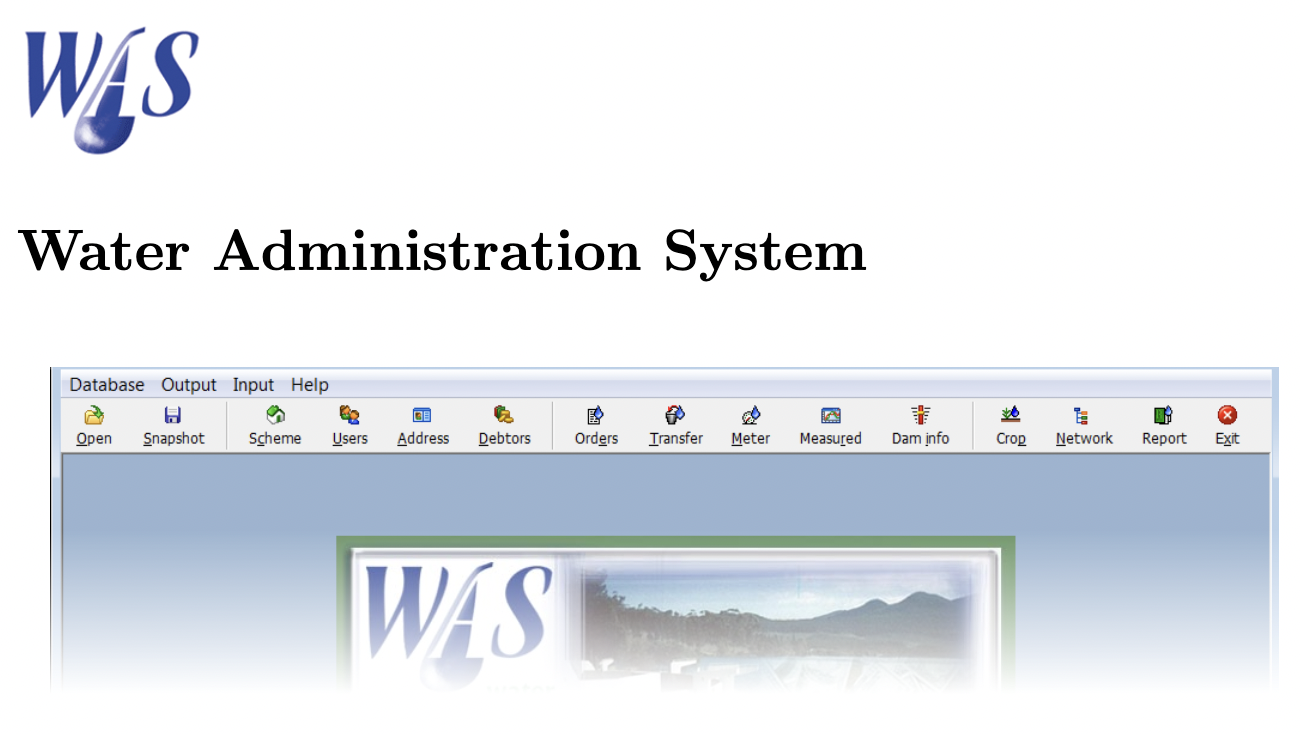
The Water Administration System (WAS) is an integrated management tool for irrigation schemes that delivers water on demand through canal networks, pipelines and rivers. WAS is used for water distribution management and for the calculation of canal and dam operating procedures for a given down- stream demand.
WAS uses an open source database called Firebird (SQL-based) as the underlying database. Firebird is a relational database management system (RDBMS) that provides rapid transaction processing and data sharing in a single- or multi-user environment. The WAS program is currently in use at all the major irrigation schemes and a number of smaller irrigation boards throughout South Africa.
The WAS program saves all information in a Firebird (SQL) database that can be installed on a single PC or on a server for use over a network. This makes it possible for the manager, accounts personnel and water office personnel to access the database from PC’s in their own offices. There is no limitation on the number of PC’s that can be linked to the database.
What makes the WAS program unique is the fact that it is an integrated system that includes the water allocations, water use, water distribution, water measurement, crop water use, billing information and a bulk SMS system. WAS will generate monthly invoices automatically using water usage or scheduled areas information captured in the database. Different user names and passwords can be used to control access to certain information in the database.
How to install the WAS program: